When you need to mirror folder mac data to an external drive, you are looking…
How to View Hidden Files on Mac: Terminal & Tools

Whether you are a developer configuring a .gitignore file or a power user troubleshooting system preferences, the need to view hidden files mac hides by default is inevitable. macOS intentionally conceals system files and those starting with a dot (like .DS_Store or .bash_profile) to prevent accidental deletions that could break your system. However, when you need to edit configuration files or clean up storage, these safety rails can become a hurdle. We’ll look at two ways to reveal these items so you can take full control of your file system.
Table of Contents
Understanding Hidden & System Files
On UNIX-based systems like macOS, any file named with a starting dot (.) is automatically hidden from the Finder. Additionally, critical system directories like /usr, /bin, and the user ~/Library folder are concealed to keep the interface clean for casual users. To view hidden files mac stores away requires toggling specific system flags.
How to view hidden files on Mac using Terminal?
While modern macOS versions allow a keyboard shortcut (Cmd + Shift + .) in Finder, the Terminal method provides a more permanent change if you want these files always visible. Launch Terminal from the Applications folder, then type:
defaults write com.apple.finder AppleShowAllFiles YES
killall Finder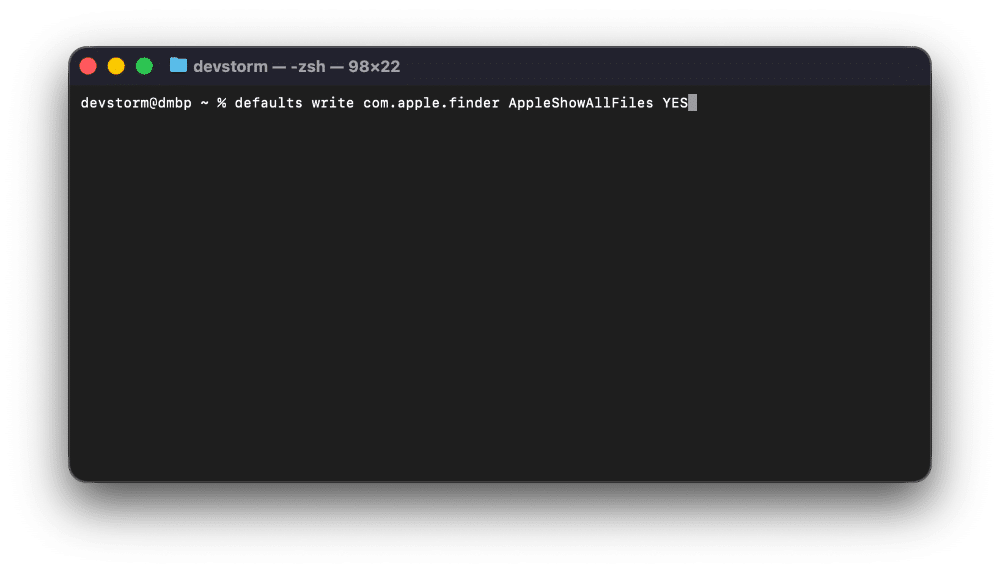
Breakdown of the command:
- defaults write com.apple.finder: Targets the preference file for the Finder app.
- AppleShowAllFiles YES: Sets the flag to always show hidden items.
- killall Finder: Restarts the Finder process to apply the change immediately.
Limitations:
Using Terminal or the Finder shortcut affects your entire OS environment. Suddenly, your Desktop and Documents folders may look cluttered with .DS_Store files and other system debris. To hide them again, you must run the command again with NO, which can be tedious if you only need to view hidden files mac occasionally for specific tasks.
How to view hidden files on Mac using DCommander?
A much easier way to view hidden files mac restricts, without cluttering your standard Finder windows, is to use DCommander. DCommander allows you to toggle hidden files only within its interface, keeping your desktop clean while giving you access to system files when you need them.
First, download and run DCommander.
- Quick Toggle: Look for the Show Hidden Files button in the toolbar (often an eye icon or similar), or go to the View menu.
- Permanent Preference: Go to Preferences > General > Overview (or Navigation) and check “Show hidden/system files”.
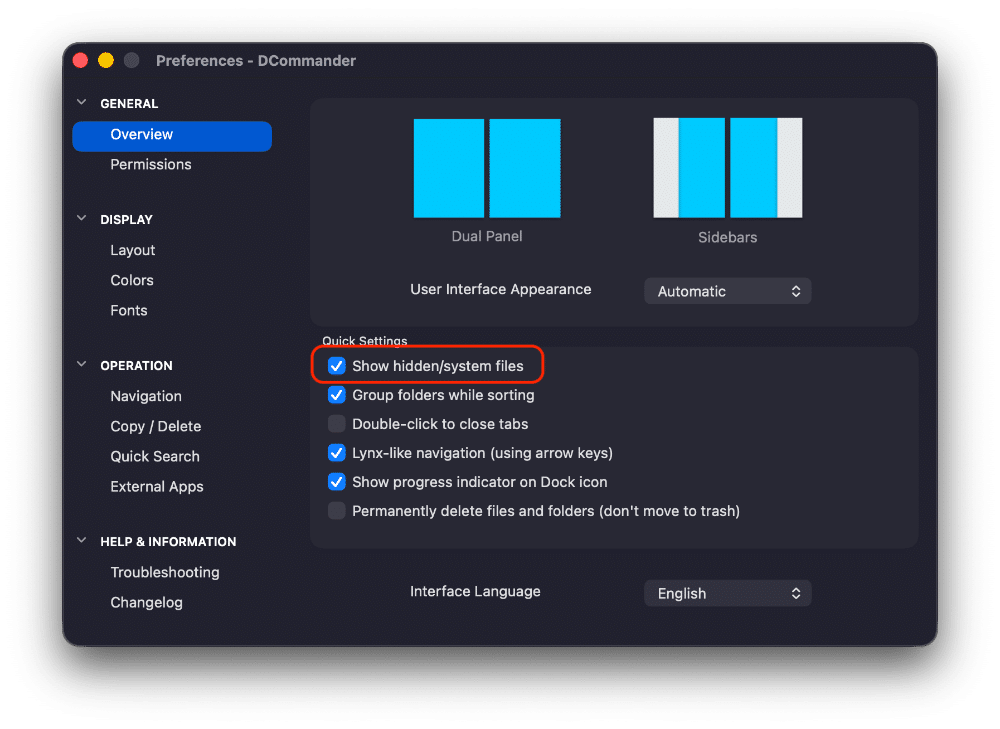
Why DCommander is better for this task:
- Contextual Visibility: You can see hidden files in your file manager while keeping Finder clean for general use.
- System Protection: DCommander can show you the files but still respects permissions, preventing you from modifying essential OS kernel files unless you explicitly authorize it.
- Search Integration: When you use DCommander’s search function, you can choose to include or exclude hidden files, giving you more granular control than Spotlight.
- Instant Toggle: Switch visibility on and off with a single click or shortcut, rather than typing Terminal commands.
Tips for managing hidden files
Once you can view hidden files mac normally hides, handle them with care:
- .DS_Store: These files store your folder view settings (icon position, sort order) in Finder. Deleting them is harmless but resets your folder layout when viewed in Finder.
- Backup before editing: Before changing .bashrc, .zshrc, or .htaccess, make a copy. A typo in these files can affect how your Terminal or web server behaves.
- Accessing Library: The ~/Library folder contains app preferences. Use DCommander to navigate here easily to clear caches or recover autosaved files.
- Grayed out files: If a file is grayed out, it usually means it is a hidden system file. You can still open and edit it if you have the right permissions.
Conclusion
While the Terminal command defaults write is the classic way to view hidden files mac users rely on, it leaves your Finder messy. DCommander offers a smarter approach, giving you a professional workspace where hidden files are visible when you need them and out of the way when you don’t. By separating your power-user tasks from your daily browsing, you maintain a cleaner, safer Mac environment.
Related Posts