When you need to mirror folder mac data to an external drive, you are looking…
Quick Lynx-like Navigation on Mac for Faster Browsing
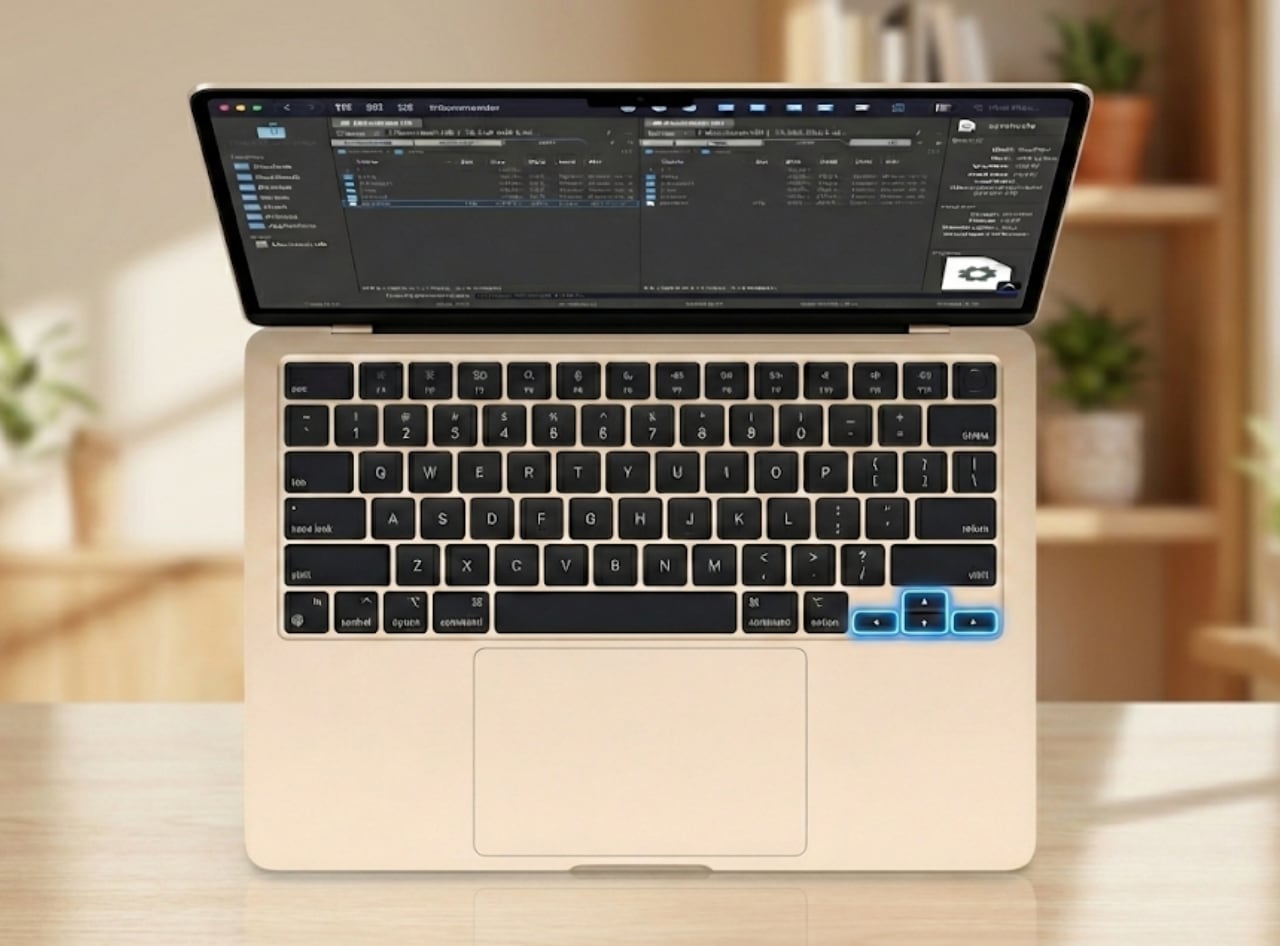
If you are a power user or a developer coming from Linux, you might be searching for lynx like navigation mac solutions to speed up your workflow. “Lynx-like” navigation refers to the efficient keyboard behavior where pressing the Right Arrow enters a directory and the Left Arrow goes up to the parent directory. Unfortunately, the native macOS Finder requires awkward shortcuts like Cmd + Down to open folders or Cmd + Up to go back, forcing you to move your hands or rely on Column view. We’ll look at two ways to achieve this seamless arrow-key flow so you can browse folders without ever touching the mouse.
Table of Contents
What is Lynx-like Navigation?
The term comes from the classic text-based web browser “Lynx,” which popularized using arrow keys for hierarchy navigation. In file management, this means:
- Right Arrow (→): Open folder / Enter directory.
- Left Arrow (←): Go to parent folder / Back.
- Up/Down Arrows (↑/↓): Select items in the list.
This creates a fluid, “waterfall” style of browsing that is significantly faster than standard macOS navigation.
How to get Lynx-like navigation using Terminal?
If you are comfortable with command-line interfaces, you can achieve lynx like navigation mac functionality by installing a text-based file manager called Midnight Commander (mc). It brings the classic Norton Commander dual-pane style to your Terminal window.
Launch Terminal from the Applications folder. You will likely need Homebrew installed. Type:
brew install mc
mc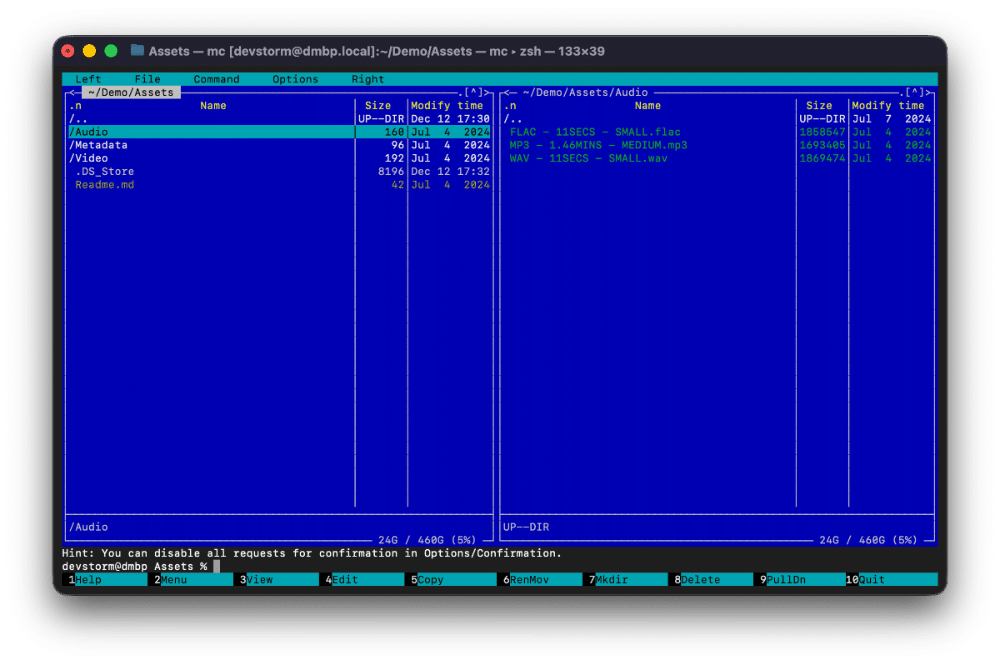
How it works:
Once mc is running, you can use the arrow keys exactly as described: Right to enter, Left to go back.
Limitations:
While efficient, running a file manager inside Terminal has major drawbacks. You cannot view high-resolution image previews, Drag & Drop is difficult or impossible, and you lose the standard macOS context menus. It is purely text-based, which isn’t practical for modern visual media management.
How to get Lynx-like navigation using DCommander?
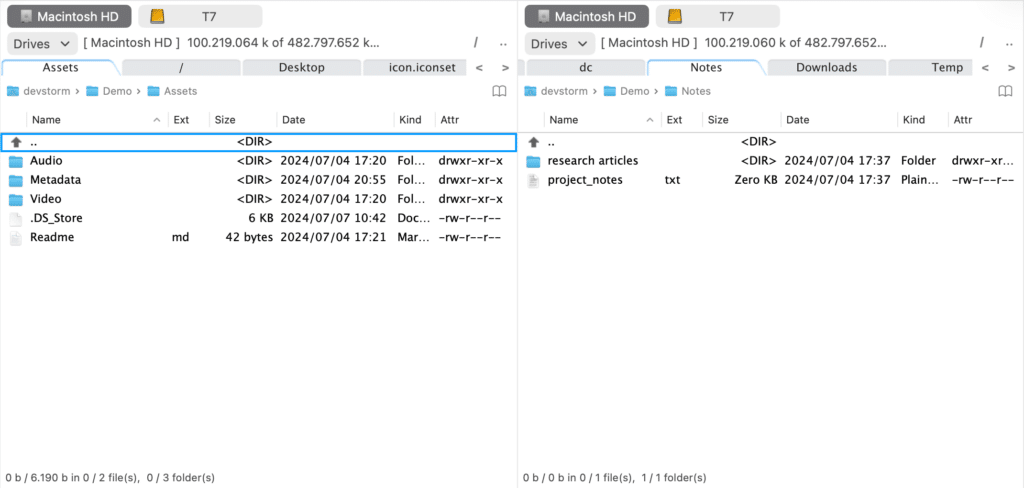
A much easier way to get lynx like navigation mac behavior within a modern graphical interface is to use DCommander. DCommander is a dual-pane file manager that includes a specific setting to enable this exact keyboard behavior while retaining full macOS graphics, Quick Look, and drag-and-drop support.
First, download and run DCommander.
- Open DCommander and go to DCommander menu > Preferences (or press ⌘,).
- Select the Navigation tab (or General depending on your version).
- Check the box labeled Lynx-like navigation.
The Workflow:
Once enabled, your arrow keys transform your browsing experience:
- Navigate: Use Up/Down to highlight a file.
- Dive In: Press Right Arrow to instantly open the selected folder.
- Go Up: Press Left Arrow to instantly jump to the parent directory.
Because DCommander is a native app, you can combine this with Spacebar to Quick Look files instantly as you navigate, giving you the speed of the terminal with the visuals of the Mac.
Tips for keyboard-only file management
To maximize the benefits of lynx like navigation mac workflows in DCommander, combine it with these keyboard features:
- Quick Search: Start typing the name of a file to jump directly to it, then hit Right Arrow to open it.
- Toggle Selection: Since the arrow keys are now used for navigation, use the Spacebar (if configured) or Insert key to select files without opening them.
- Tab Switching: Use Tab to switch between the left and right source/destination panes.
- Hotlist Jump: Press ⌘D to jump to favorite folders, then use arrow keys to drill down.
Conclusion
While the Terminal offers a nostalgic text-based solution via Midnight Commander, it lacks the visual utility modern users need. For true lynx like navigation mac functionality that integrates with macOS features like Quick Look and drag-and-drop, DCommander is the superior choice. It allows you to traverse deep folder structures in seconds using just your arrow keys.
Related Posts