When you need to mirror folder mac data to an external drive, you are looking…
Search Files on Mac with DCommander (Advanced Search Guide)
Search files on Mac often enough and you eventually hit a wall. You are sure you saved something “somewhere in Documents”, or you downloaded it “yesterday”, but when you try to find it, you end up scrolling through an endless list of folders and random filenames.
Spotlight and Finder’s built-in search help with simple cases, but as soon as you have multiple drives, large projects, or poorly named files, they start to get in the way instead of getting you to the file you need.
DCommander is an advanced file manager for Mac that includes a focused Find Files tool: you can search by name, use regular expressions (regex), narrow the search to a specific folder or drive, and even search inside files for plain-text content.
In this article you will learn how to use DCommander’s Find Files window step-by-step so you can quickly search files on Mac by name, by pattern, or by content.
Table of Contents
Why files “disappear” on Mac
There are a few common patterns behind missing files:
- Overloaded Downloads and Desktop
PDFs, images, ZIPs and installers all land in the same few folders. After weeks or months, filenames like invoice.pdf or document (3).pdf give you zero context. - Multiple drives and locations
External SSDs, USB drives, NAS shares, cloud-sync folders. The same project might be split across several volumes. It is easy to forget which drive holds the latest version. - Large, similar projects
Photo shoots with thousands of images, code repositories with build artifacts, or log folders with dozens of similar files all make it hard to visually spot what you need.
Finder and Spotlight can help with basic “type a word and see what comes up” search, but they are not optimized for precise, folder-scoped, and pattern-based searches where you want full control.
Meet DCommander’s Find Files
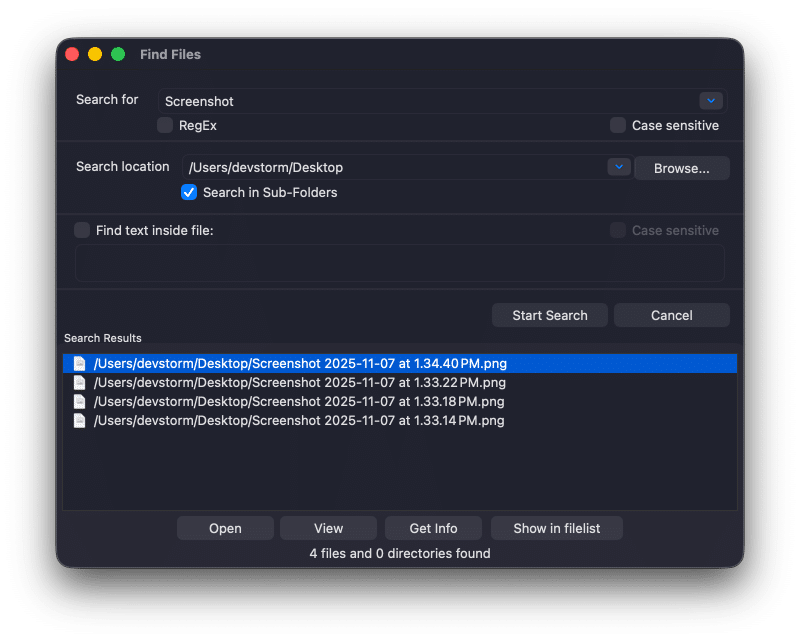
DCommander’s Find Files is built for people who regularly search files on Mac and need more control than Spotlight or Finder can offer.
Find Files allows you to:
- search by name (full or partial; no wildcards required),
- optionally interpret the name as a regular expression (regex),
- switch case sensitivity on or off,
- choose a search location (defaults to the active pane’s folder),
- decide whether to search in sub-folders,
- and optionally search inside files for a plain-text string.
The results appear in a list, and each item behaves like a normal file entry: you can open it, preview it, inspect details, or jump directly to its location in the main file list.
How to open the Find Files window
- Launch DCommander and navigate one of the panes to the folder where you want to start searching (for example, your project folder on an external SSD).
- Open the Find Files window:
- either from the toolbar search field or the menu,
- or by using the keyboard shortcut ⌥ + F7.
The Find Files window contains two independent matchers:
- a Name section (for filename / folder name search), and
- a Content section (for searching inside files).
You can use just one of them, or combine both at the same time.
Search files by name (the everyday workhorse)
Most of the time, when you search files on Mac, you at least remember part of the filename: a client name, a project keyword, or a date. Name search is the fastest way to get to it.
Basic name search
- Open the Find Files window.
- In the Search for field under the Name section, type part of the filename:
- Type
invoiceto match2025_invoice_clientX.pdf. - Type
reportto matchQ4_report_final.xlsx.
- Type
- You do not need wildcards (
*invoice*); just type the text fragment you remember. - Set Location to the folder you want to search:
- By default this is the current path of the active pane.
- You can change it to any other folder or drive.
- Decide whether to enable Search in sub-folders:
- Off: search only the current folder (fast, very precise).
- On: search the current folder and all of its sub-folders (recursive).
- Click Start Search.
DCommander will show you a list of matching files and folders. If you realize you picked the wrong folder or the query is too broad, simply adjust the criteria, click Start Search again and the list will refresh.
Case sensitivity and when to use it
Under the Name section you can toggle Case sensitive. In normal everyday use, leave this off so Report, report, and REPORTwill all match.
Turn it on only when you rely on case to distinguish files, for example in code repositories where config.js and Config.js are different files on certain systems.
Control where DCommander searches
Targeting the correct location is crucial if you want fast, relevant results.
- Pane-aware location
Find Files uses the active pane’s path as a convenient default. If you have the left pane open on~/Projects/ClientA, that is where the search will start. - Limit the scope first
Start as narrow as possible:- a specific project root,
- one external drive,
- a single client folder.
- Search in sub-folders only when needed
Searching only the top-level folder is faster and gives you a quick sense of what is there. Turn Search in sub-folders on when you genuinely do not know where inside the tree the file might be.
This simple habit, choosing a tight location and toggling recursion intentionally, already makes DCommander much more reliable than a quick, system-wide Spotlight search.
Power users: find files with regex (regular expressions)
Sometimes a simple “contains” search is not enough. Maybe you only want RAW photos and not JPEGs, or only screenshot filenames that follow a certain pattern. That is where regex search becomes invaluable.
To use regex:
- In the Name section, type your regex pattern in the Search for field.
- Enable the RegEx option so DCommander interprets your input as a regular expression.
- Optionally adjust Case sensitive.
- Click Start Search.
Here are a few practical examples:
Example 1 – Filter camera dumps
You have an SD card full of mixed JPEG and RAW photos, and you only want the original camera files:
^DSC_\d{4}\.(jpg|arw)$
RegEx: enabled
Location: your SD card mounted under /Volumes
Search in sub-folders: On (if the camera nested folders)
Explanation:
^ and $ match the start and end of the filename.
DSC_ is the fixed prefix from the camera.
\d{4} means “exactly four digits”.
(jpg|arw) matches either .jpg or .arw extensions.
Example 2 – Match only screenshots
You want to find all screenshots, regardless of slight variations in naming:
(?i)screenshot.*\.(png|jpg)
Explanation:
(?i) makes the pattern case-insensitive.
screenshot.* matches any filename starting with “screenshot”.
\.(png|jpg) filters to PNG or JPG images.
Example 3 – Limit by extension and number range
Only get photos numbered up to 5000:
^IMG_([0-4]\d{3}|5000)\.jpg$
This pattern matches IMG_0000.jpg through IMG_4999.jpg and IMG_5000.jpg.
Avoid common regex pitfalls
- Make sure RegEx is actually enabled when you use regex patterns.
- Remember to escape dots: use
\.to match a literal period in filenames. - Start with simpler patterns and test them on smaller folders before using them on entire drives.
Search inside files on Mac (plain-text content search)
File names are often not descriptive. Someone might have saved a contract as final_version.docx or a log file as log.txt. In these cases you need to search inside files.
DCommander’s Find Files can search for a plain-text string in file contents:
- In the Content section, fill in Find text inside file with the text you are looking for.
- Optionally toggle Case sensitive if letter case matters.
- Set your Location and Search in sub-folders just like with name search.
- Click Start Search.
Some useful scenarios:
Example 1 – Find a config line across a repository
You are not sure which config file sets the API base URL:
- Search for (Name): leave empty, or restrict to
*.env/*.configvia location/structure. - Find text inside file:
API_BASE_URL= - Case sensitive: Off (unless your config is strictly case-sensitive)
- Location: project root folder
DCommander will list all files where that line appears, so you can jump straight into the correct config file.
Example 2 – Locate log files with a specific error
You are debugging an issue and only remember the error code, e.g. E1234:
- Search for (Name): leave empty or restrict to a “logs” folder.
- Find text inside file:
E1234 - Search in sub-folders: On (log folders often contain subdirectories by date)
- Location: the log directory on your disk or server share
You can then open the matching logs in your editor or favorite log viewer.
Example 3 – Find documents mentioning a client
You remember a client’s company name but not the document title:
- Search for (Name): leave empty.
- Find text inside file: the client’s company name.
- Location: a wider scope like
Documentsor your “Clients” folder. - Search in sub-folders: On.
DCommander will surface any text-based file containing that string.
A note on performance
Content search is plain-text scanning, not full-text indexing. Large files (and especially binaries) are treated as byte streams and will be slower to scan.
For best performance:
- limit the Location as much as possible (project, drive, or client folder),
- only enable Search in sub-folders when needed,
- avoid pointing content search at huge system folders, build caches, or bundled libraries unless absolutely necessary.
Work directly with search results
Once DCommander finishes searching, you get a results list. Each entry behaves like a normal file in the main panes.
Common actions on a selected result:
- Open – open the file with its default application.
- View – quickly preview the file using DCommander’s viewer or Quick Look.
- Get Info – see full path, size, timestamps and other metadata.
- Show in filelist – jump directly to the item in the main pane at its real location.
That last action is particularly useful:
- Once you find the right file, Show in filelist takes you to its folder so you can:
- move it to another pane (e.g. to archive it),
- include it in a batch operation (copy, delete, compress),
- or select related files around it.
If you need to clean up or standardize the names of a whole group of results, you can select them in DCommander and then use the Multi Rename Tool to batch rename them with counters, dates, or custom patterns before archiving or syncing them.
Troubleshooting: no results, too many results, and permissions
No results at all
If DCommander finds nothing:
- Double-check the Location – are you searching the right folder or drive?
- Temporarily disable RegEx if you actually typed a literal string into the Name field.
- Turn off Case sensitive for both Name and Content unless you truly need case-exact matches.
- Try a smaller fragment of the text or filename to see if you get partial matches.
Too many results
If the list is overwhelming:
- Narrow the Location to a specific project or subfolder.
- Turn Search in sub-folders off, then re-enable only if needed.
- In regex mode, simplify your pattern or add anchors like
^and$to make it more specific.
“Operation not permitted” or missing folders
macOS protects some locations (Desktop, Documents, external drives, certain Library folders). If DCommander cannot see or search files on Mac in a specific folder, you may need to:
- add that folder or volume under Preferences → Permissions inside DCommander, or
- grant Full Disk Access to DCommander in System Settings → Privacy & Security.
After adjusting permissions, restart DCommander and try the search again.
When to use DFind and DSync alongside DCommander
DCommander’s Find Files is designed for focused searches inside your daily file manager. For some tasks, you might want to complement it with our other utilities:
- DFind – File and Content Search Tool
Use DFind when search itself is the main task:- search files on Mac across multiple disks and network shares at once,
- running complex content searches regularly,
- or when you need a dedicated search files on Mac tool with its own saved searches and filters.
- DSync – File Synchronizer
Once you find and tidy up the right folders with DCommander, you can use DSync to:- mirror them to an external drive,
- keep a backup copy in sync with your main working folder,
- or maintain identical copies of project trees across devices.
- Multi Rename Tool – One Click Renamer
After locating scattered files (screenshots, invoices, exports), feed them to the Multi Rename Tool to normalize their names in bulk: add counters, insert timestamps, or enforce consistent patterns in a few clicks.
These tools integrate naturally into the way you already work with files in DCommander, turning “advanced search” into a complete workflow: find, clean up, rename, and back up.
Conclusion
Searching for files on Mac does not have to be a guessing game. With DCommander’s Find Files:
- simple name searches become fast and precise,
- regex patterns let you target exactly the files you want,
- content search pulls up documents, configs, and logs even when filenames are useless,
- and the results list lets you act immediately instead of just observing.
Set your location carefully, decide whether you really need sub-folders, and combine Name + Content only when necessary. Once you get into the habit of using Find Files whenever you search files on Mac, losing documents, photos or logs becomes the exception, not the rule.
Related Posts