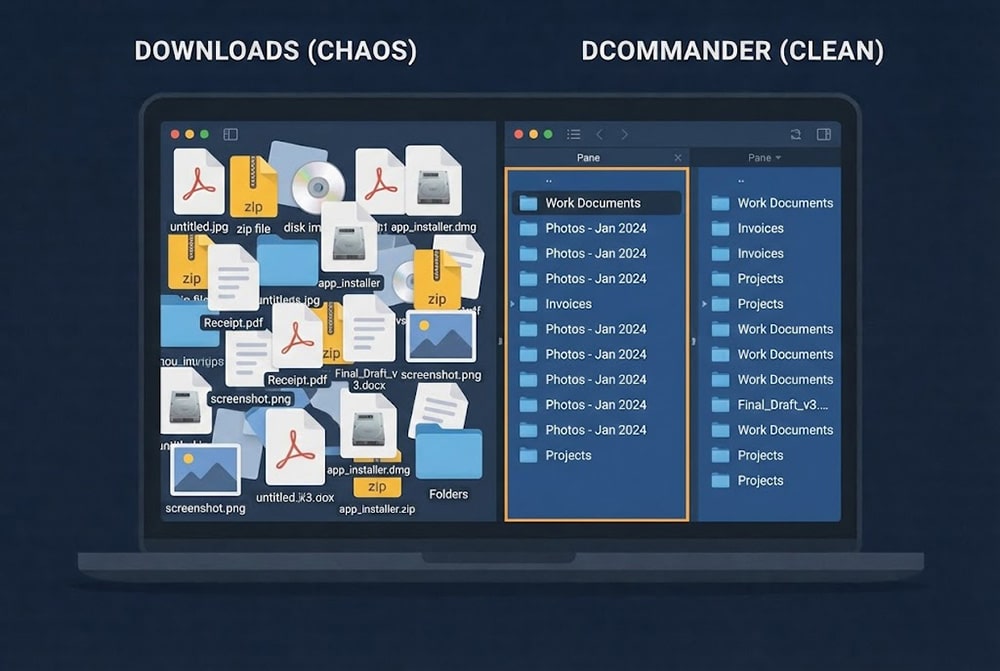
When you need to mirror folder mac data to an external drive, you are looking…
Find Files Regex Mac Tutorial: Step-by-Step Guide for Beginners
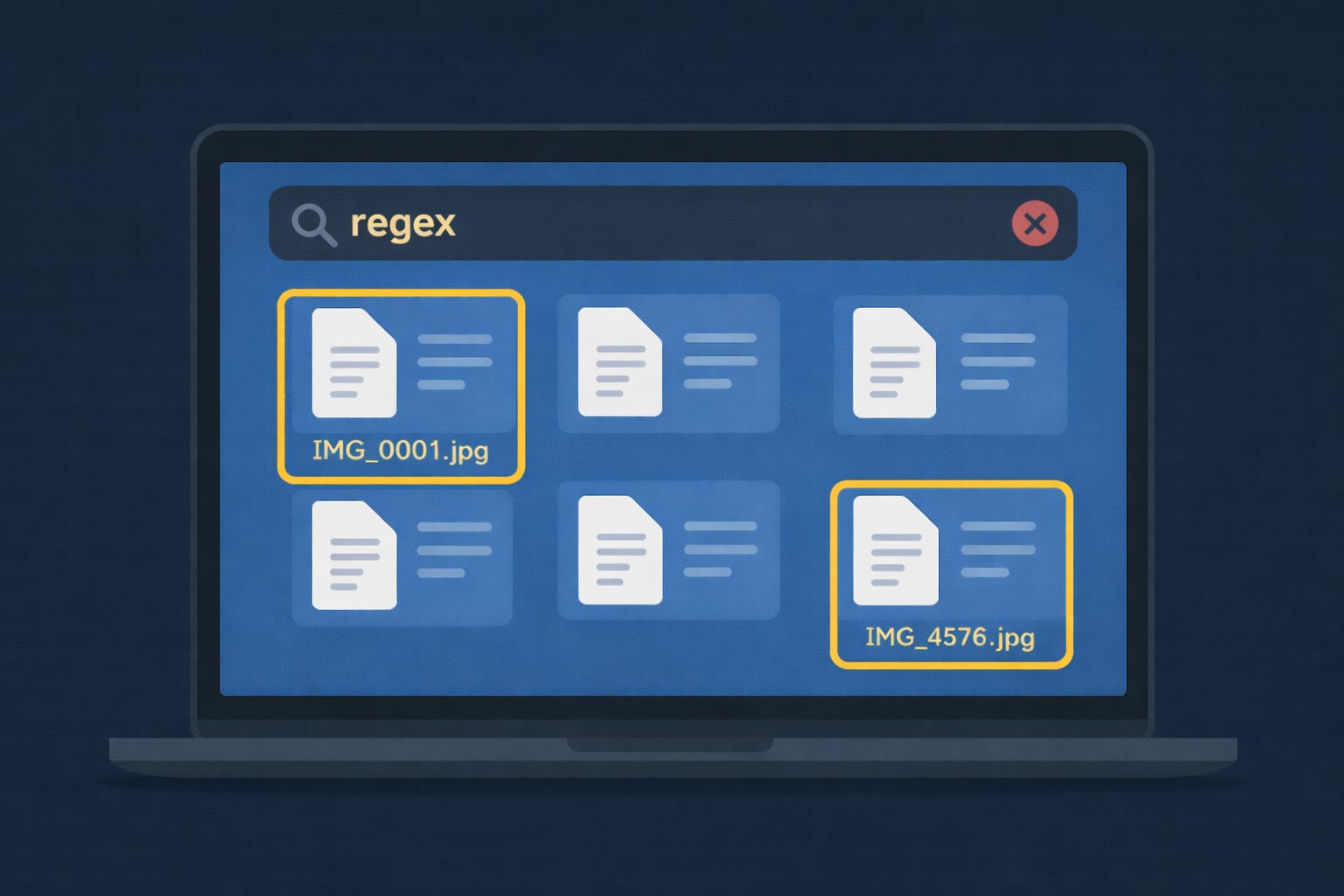
When standard Spotlight searches fail to locate specific filename patterns, knowing how to find files regex mac tools support is a game-changer. Standard wildcards (like *.jpg) are useful, but they lack precision. Regular Expressions (Regex) allow you to search for abstract patterns, such as “any PDF that starts with a date” or “all images ending in three digits.” While it sounds technical, using regex is a superpower for organizing cluttered drives. We’ll look at two ways to leverage this power so you can locate exactly what you need.
Table of Contents
What is Regex?
Regex is a sequence of characters that specifies a search pattern. Instead of searching for a literal word like “Invoice,” you can search for the structure of a name.
- ^ means “starts with”
- $ means “ends with”
- \d{4} means “exactly 4 digits”
How to find files with regex using Terminal?
macOS is built on UNIX, so you can use the command line to find files regex mac systems store. The native find command supports extended regular expressions using the -E flag.
Launch Terminal from the Applications folder, navigate to the folder you want to search (cd ~/Documents), and type:
find -E . -regex ".*IMG_[0-9]{4}\.jpg"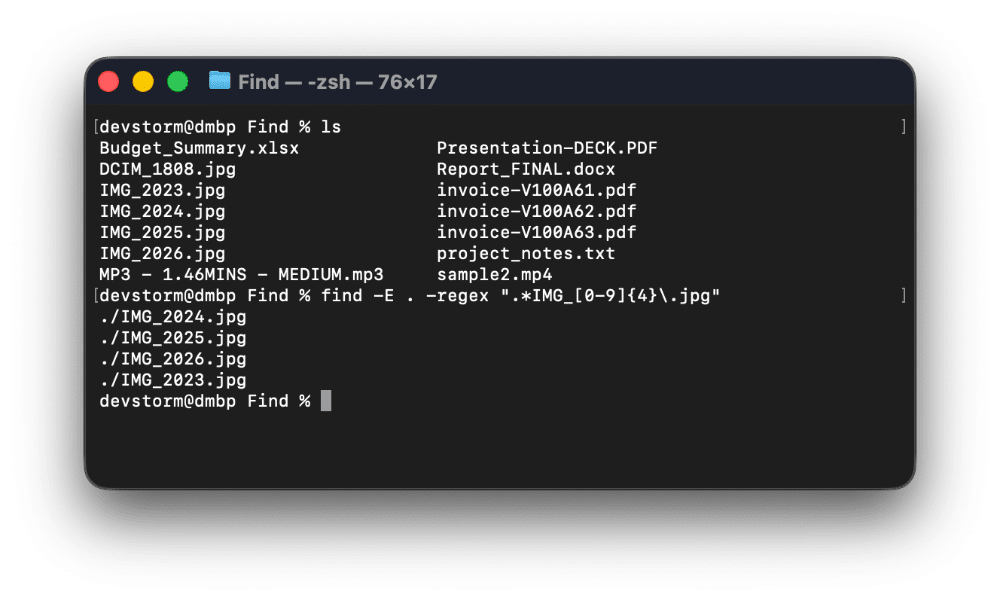
Breakdown of the command:
- find: The utility to search for files.
- -E: Enables Extended Regular Expressions (necessary for modern syntax).
- .: Searches the current directory (and subdirectories).
- -regex: Specifies that the following string is a regex pattern.
- “.*IMG_[0-9]{4}\.jpg”: The pattern. Matches any path (.*) containing IMG_ followed by exactly 4 digits (0-9), ending in .jpg.
Limitations:
Terminal outputs a plain text list of paths. You cannot click to open them, preview them, or drag them to a new folder. If you need to act on the results (like moving or deleting them), you have to write complex pipe commands (| xargs), which is risky for beginners.
How to find files with regex using DCommander?
A much more user-friendly way to find files regex mac users prefer is DCommander. DCommander features a powerful visual search tool that fully supports regular expressions, allowing you to interact with the results just like a normal file list.
First, download and run DCommander.
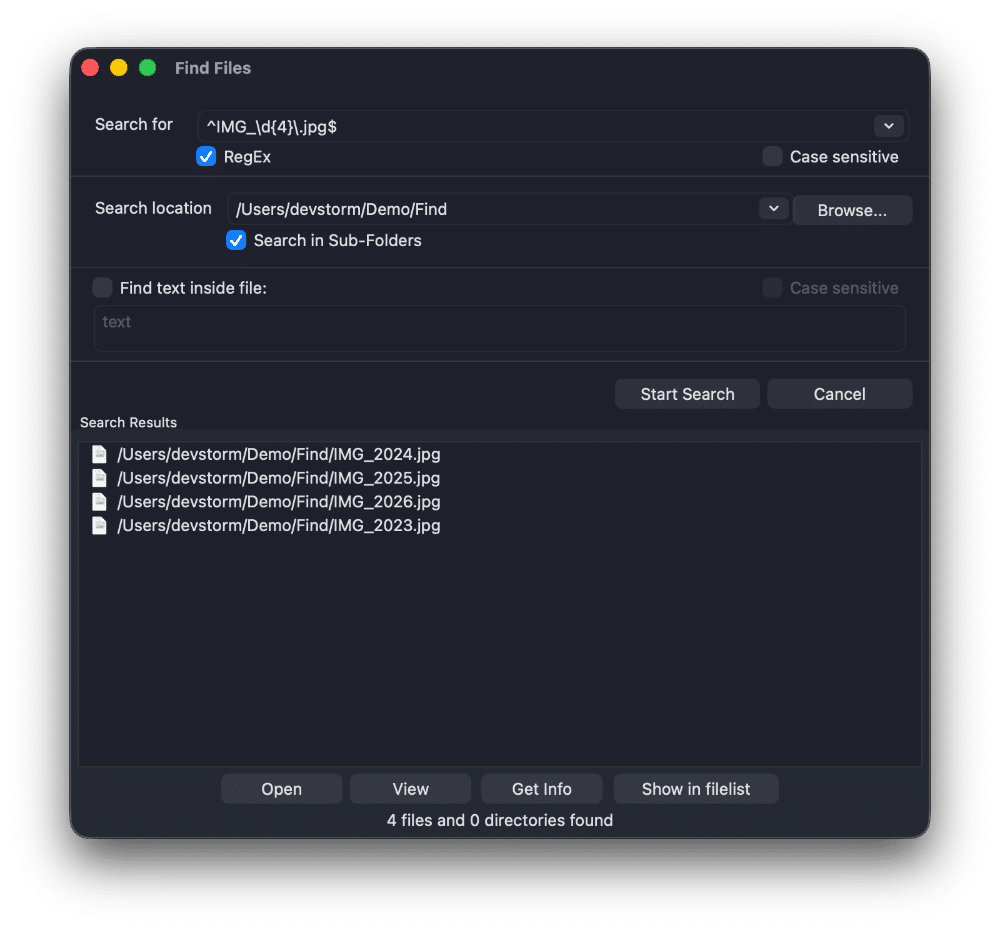
- Open Find Files: Press ⌥ (Option) + F7 or click the Search icon in the toolbar.
- Enable Regex: In the search window, check the box labeled RegEx.
- Enter Pattern: Type your pattern in the “Search for” field.
- Example: ^IMG_\d{4}\.jpg$ (Finds jpegs starting with “IMG_”).
- Search: Click Start Search. DCommander will recursively scan the location.
Why DCommander is better:
- Actionable Results: Unlike Terminal, the results in DCommander are a functional list. You can F5 Copy or F6 Move the found files immediately.
- Quick Look: Select a result and hit Space to verify it’s the right file.
- Dual-Pane Integration: You can feed the search results to the active file pane (Feed to listbox) to work on them further.
- Safe Playground: If your regex is wrong, you simply get zero results—you don’t risk executing a command on the wrong files.
Tips for Regex Beginners
To effectively find files regex mac workflows require, memorize these 5 basic tokens:
- . (Dot): Matches any single character.
- * (Asterisk): Matches the previous character zero or more times. .* is the regex equivalent of a standard wildcard.
- \d: Matches any digit (0-9).
- [abc]: Matches any one character inside the brackets (a, b, or c).
- | (Pipe): Logical OR. (png|jpg) matches png OR jpg.
Example Patterns:
- invoice_\d{3} → Matches “invoice_001”, “invoice_999”
- ^backup → Matches files starting with “backup”
- (?i)test → Matches “test” case-insensitively (if supported)
Conclusion
Mastering how to find files regex mac utilities offer gives you surgical precision over your data. While the Terminal’s find command is powerful for scripts, DCommander brings that power into a visual interface. It allows you to filter thousands of files instantly and manage them with ease, making it the ultimate tool for advanced file search on macOS.
Related Posts