When you need to mirror folder mac data to an external drive, you are looking…
How to Find and Replace Text in Filenames on Mac
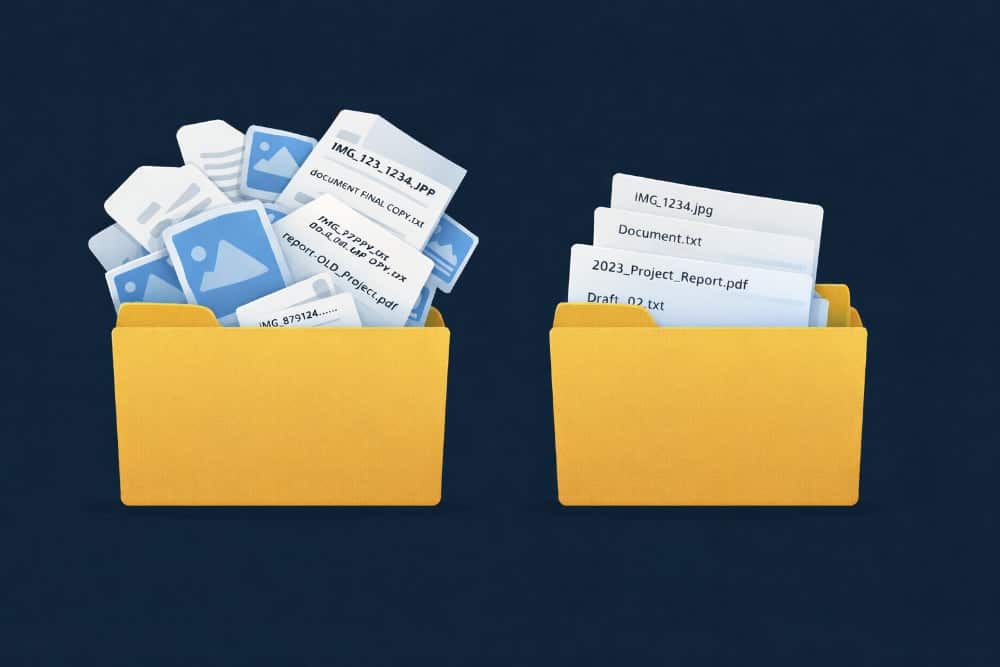
Whether you are cleaning up a messy photo library, organizing project assets, or correcting a typo across dozens of documents, the need to find and replace text in filenames on Mac is a common productivity hurdle. Manually clicking and typing each name is slow and prone to error. Fortunately, macOS offers several ways to automate this, from simple built-in tools to powerful command-line options. We’ll look at two ways to batch rename your files so you can clean up your folders in seconds.
Table of Contents
The Challenge of Batch Renaming
Renaming one file is easy, but renaming a hundred requires automation. The goal is to take a specific string of text—like “IMG_” or “draft-v1” and replace it with something meaningful like “Vacation-2026” or “Final”, without altering the unique parts of the filename (like numbering or extensions).
How to find and replace text using Finder?
For basic tasks, the macOS Finder has a built-in batch rename tool. It is hidden in the context menu but is surprisingly capable for simple string swaps.
- Open Finder and navigate to your folder.
- Select the files you want to rename. Press Cmd + A to select all.
- Right-click (or Control-click) on the selection and choose Rename…
- In the dialog that appears, choose Replace Text from the dropdown menu.
- Enter the text to find (e.g., “Screen Shot”) and the text to replace it with (e.g., “img”).
- Click Rename.
Limitations:
While Finder is free and built-in, it lacks a “Live Preview” of the full list (it only shows a small example) and doesn’t support advanced patterns for complex matching.
How to find and replace text using Terminal?
For advanced users, the Terminal allows you to find and replace text in filenames on Mac using powerful shell commands. Launch Terminal from the Applications folder.
To replace “old” with “new” in all filenames in the current directory, you can use a simple Zsh loop (the default shell on modern macOS):
for f in *old*; do mv "$f" "${f//old/new}"; done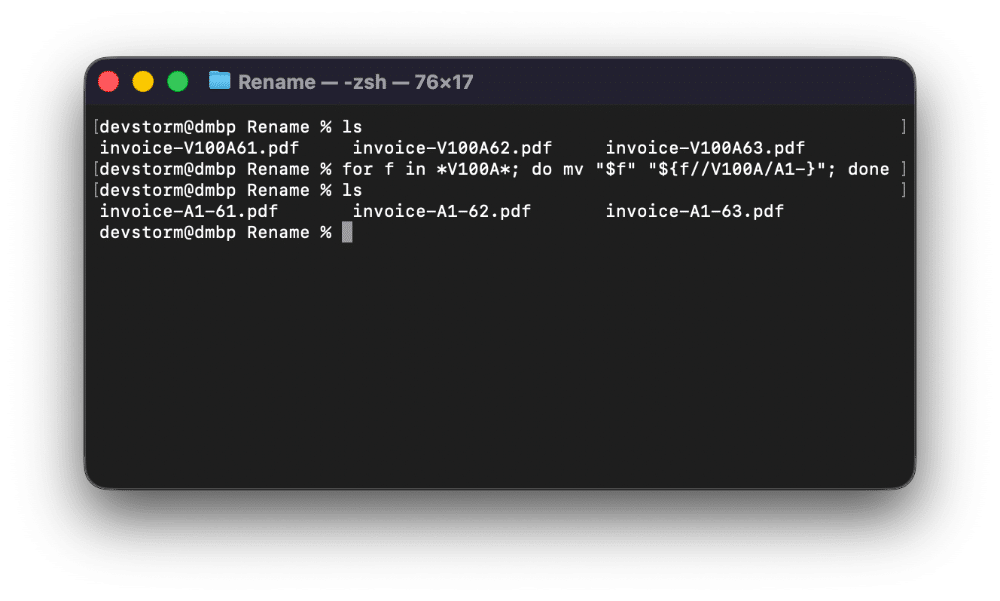
Breakdown of the command:
- for f in *old*: Finds all files containing the text “old”.
- do mv “$f”: Prepares to move (rename) the file.
- “${f//old/new}”: Performs the text substitution.
- done: Executes the loop.
Warning: Terminal offers no undo button. If you make a typo in your pattern, you could accidentally rename hundreds of files incorrectly with no easy way to revert.
How to find and replace text using DCommander?
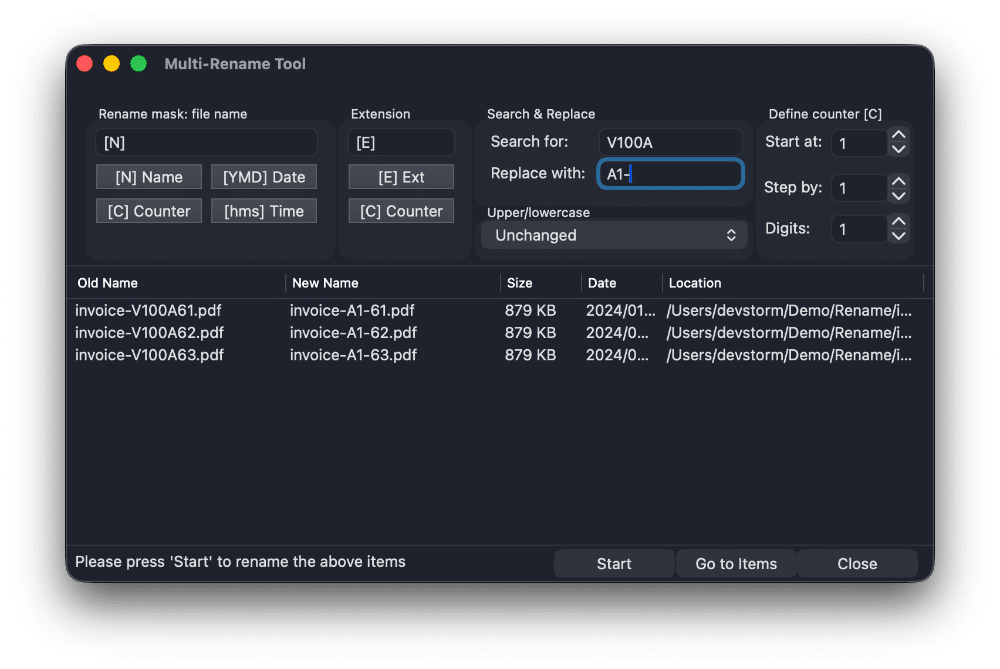
A much safer and more powerful way to find and replace text in filenames on Mac is to use DCommander. DCommander includes a dedicated Multi Rename tool that combines the power of Terminal with the safety of a graphical interface. You can see exactly what the new names will look like before you apply the changes.
First, download and run DCommander.
- Select Files: Highlight the files you need to rename in the DCommander file list.
- Open Tool: Click the Multi-Rename icon in the toolbar or go to the standard Commands menu.
- Configure: In the “Search for” field, type the text you want to remove. In the “Replace with” field, type your new text.
- Preview & Apply: Look at the “New Name” column. DCommander shows a live preview of every single file change. If it looks correct, click Start.
Why this is better:
- Safety: The live preview prevents disasters by showing you the result before you commit.
- Case Sensitivity: Easily toggle case sensitivity for precise matching.
- Sequencing: You can add counters or dates while performing the find/replace in a single operation.
Tips for Batch Renaming
- Test on a few files: If you have thousands of files, select 5-10 of them first to test your “Find” pattern.
- Backup first: If the files are critical, make a copy of the folder before running a batch operation.
Conclusion
While Finder is great for quick edits and Terminal offers raw power, DCommander offers the best balance for anyone who needs to find and replace text in filenames on Mac regularly. The combination of advanced search patterns and a safety-first preview window makes it the ideal tool for keeping your digital life organized.
Related Posts