When you need to mirror folder mac data to an external drive, you are looking…
Dual Pane File Manager Mac vs Finder: Why Power Users Switch
Finding the best dual pane file manager mac users rely on is often the turning point between frustration and productivity. If you have ever found yourself dragging a file across a cluttered desktop, hovering over folders waiting for them to spring open, or losing track of which window is which, you have experienced the limitations of the native macOS Finder. For casual use, Finder is sufficient, but for anyone managing large libraries, codebases, or archives, the inefficiency adds up. We’ll look at two ways to move and manage files efficiently so you can regain control of your workflow.
Table of Contents
The Problem with Spatial File Management
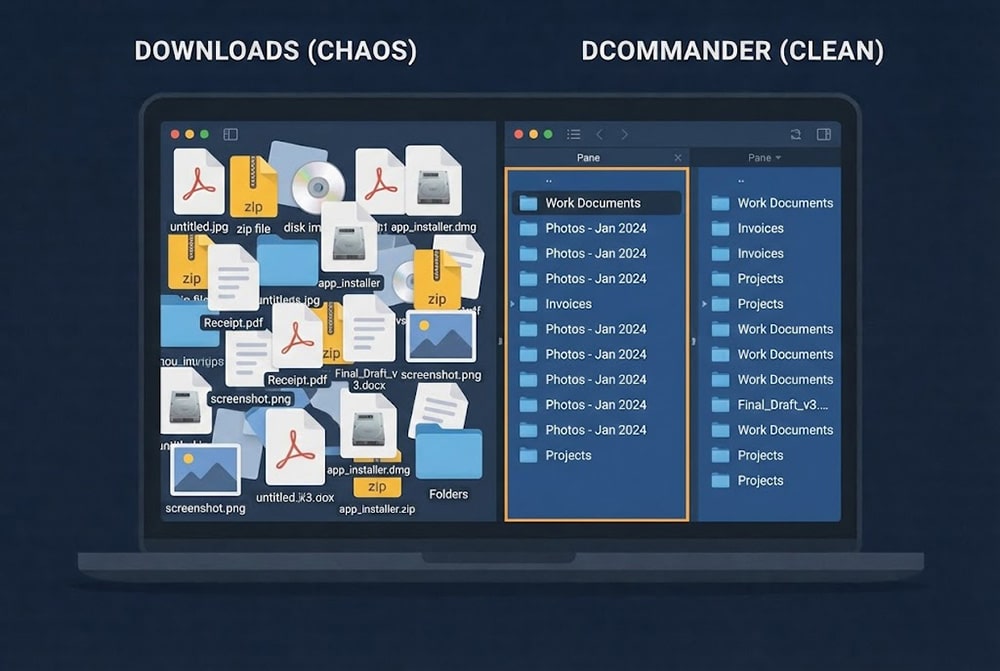
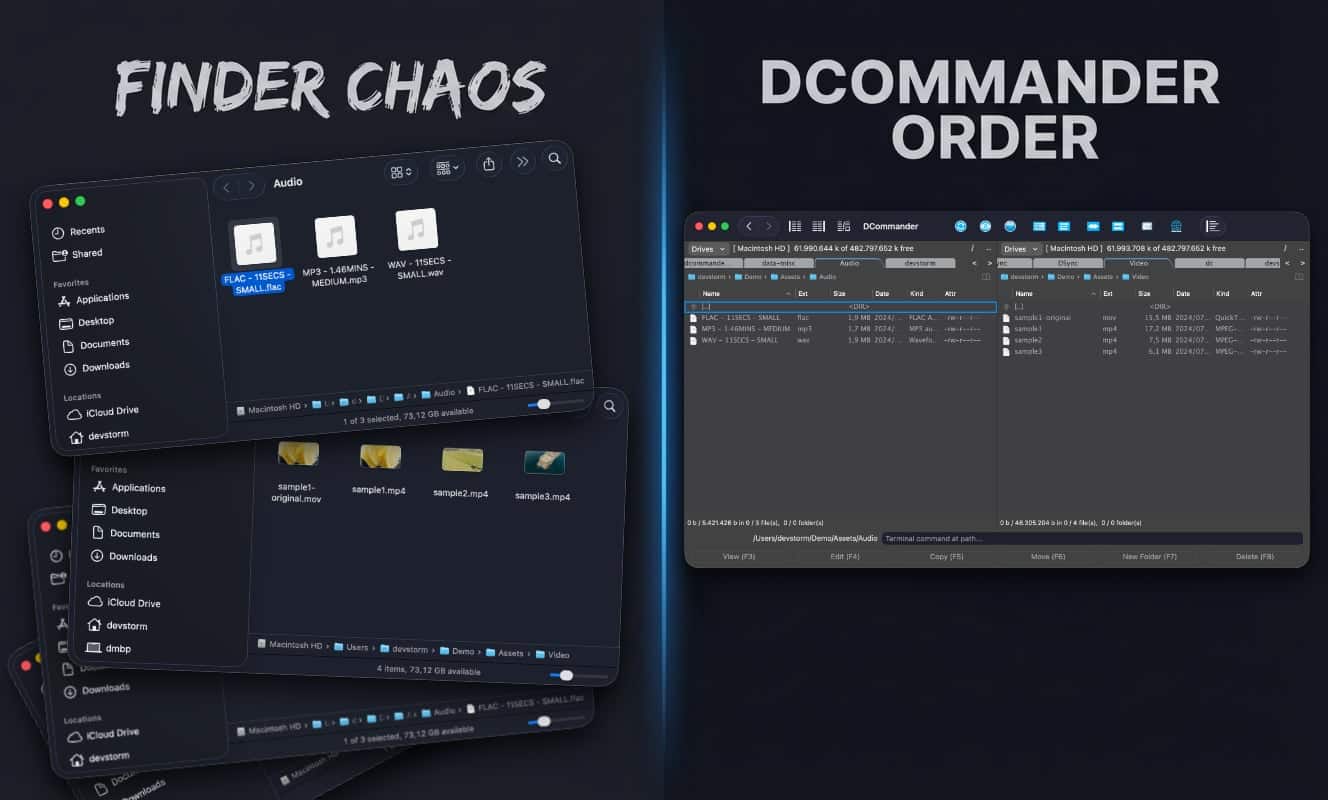
The default macOS Finder uses a “spatial” model (or browser model), where each window represents a location. To move a file, you typically open two windows—Source and Destination—and drag items between them. This leads to window clutter, accidental drops, and the tedious need to rearrange windows constantly.
A dual pane file manager mac utility solves this by displaying the Source and Destination side-by-side in a single window. Operations like copying and moving happen instantly between the panes, usually via keyboard shortcuts, eliminating the need for drag-and-drop gymnastics.
How to move files using Terminal?
Before graphical interfaces, the command line was the original power user tool. macOS includes built-in command-line tools for moving files without opening multiple windows. Launch Terminal from the Applications folder, then type:
mv ~/Downloads/report_final.pdf ~/Documents/Projects/2025/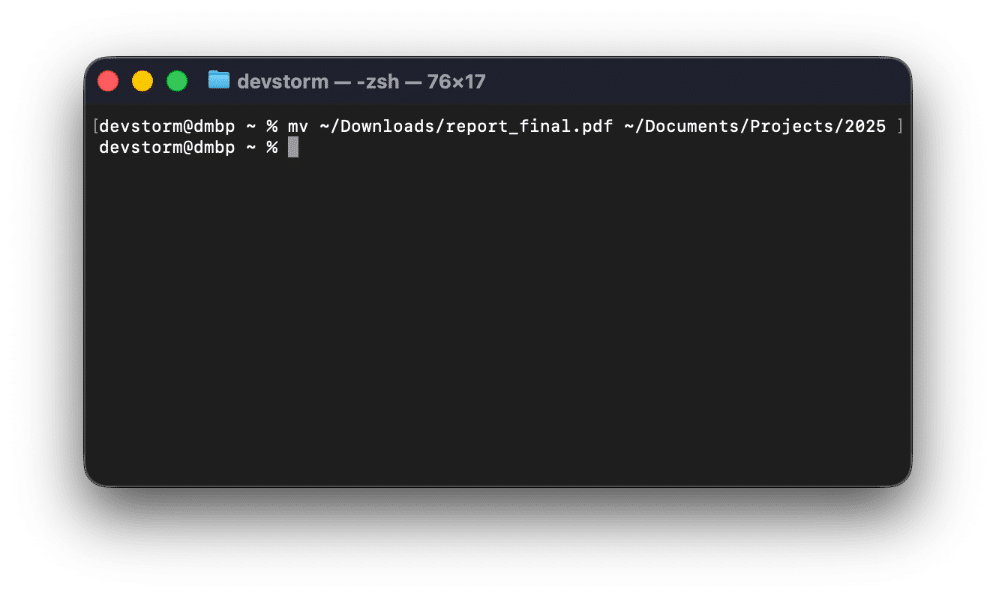
Breakdown of the command:
- mv: The command utility to “move” files.
- ~/Downloads/report_final.pdf: The path to your source file.
- ~/Documents/Projects/2025/: The path to your destination folder.
Limitations:
While Terminal is fast, it requires you to memorize exact file paths and offers no visual confirmation before you execute the command. A typo can result in errors or, worse, overwriting files without warning. It lacks the visual queue and pause/resume capabilities of a dedicated dual pane file manager mac solution.
How to move files using DCommander?
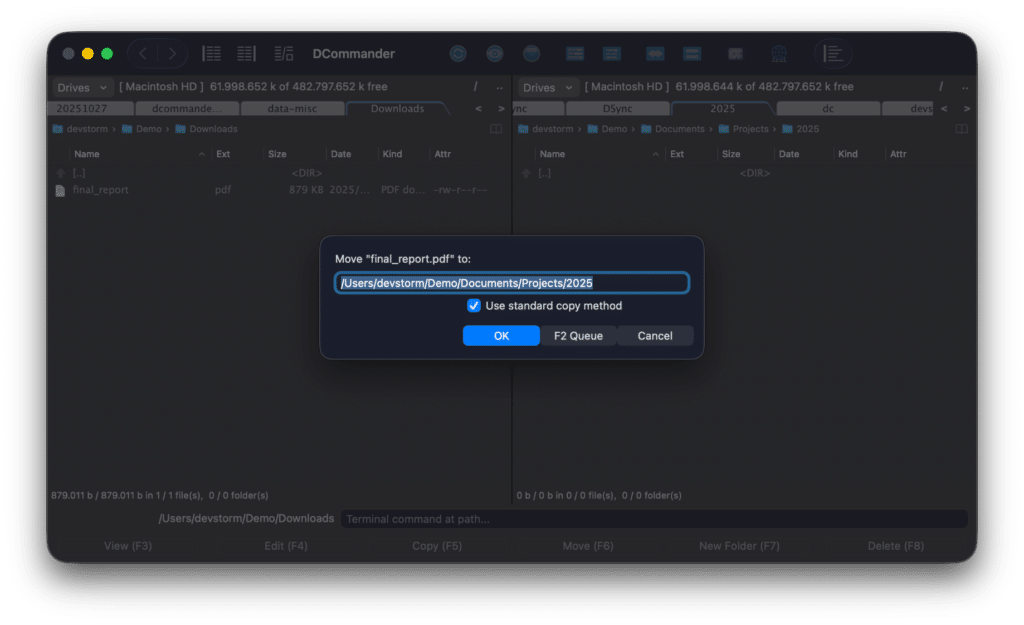
A much easier way to manage files is to use DCommander, a premium dual pane file manager mac app designed for speed and reliability. Because it’s a graphical application, you can see your source and destination simultaneously, select files with a mouse or keyboard, and execute transfers with confidence.
First, download and run DCommander.
- Set your Panes: Navigate to your source folder in the left pane and your destination folder in the right pane.
- Select Files: Highlight the files you want to move. You can use Space to toggle selection or Shift + Arrow Keys for a range.
- Execute: Press F5 to Copy or F6 to Move.
- Confirm: A dialog confirms the “Source → Destination” path. Press Return to execute.
Why this is superior:
- Always Visible: You never lose sight of where files are coming from or going to.
- Transfer Manager: Unlike Finder, DCommander queues operations. You can view and stop file transfers using the Transfer Manager (⌘J).
- Keyboard Centric: You can perform complex file operations without ever touching the mouse.
- Conflict Handling: If a file exists, DCommander gives you clear options to Skip, Overwrite, or Rename, making it the robust dual pane file manager mac choice for professionals.
Tips for Advanced File Management
Once you switch to a dual pane file manager mac workflow, try these tips to speed up your day:
- Use Folder Hotlists: Press ⌘D to save frequently accessed paths. You can jump to your “Work” or “Archive” folders instantly in either pane.
- Batch Rename: Select multiple files and use the Multi Rename Tool. You can add dates, counters, or replace text strings in filenames with a live preview—something Finder cannot do easily.
- Quick Look Integration: You don’t lose the Mac experience. Select any file and press Space to see a Quick Look preview, just like in Finder, but within the efficient dual-pane layout.
- Background Queues: Offload huge transfers to the background queue so you can keep working in the main window immediately.
Conclusion
While Terminal offers raw power and Finder offers familiarity, neither can match the speed and visibility of a dedicated dual pane file manager mac tool. Finder often leads to window clutter, and Terminal lacks visual safety. DCommander bridges this gap, offering a professional interface that puts you in complete control of your file system. Whether you are moving terabytes of data or organizing your daily downloads, switching to a dual-pane workflow is the single best upgrade you can make for your Mac productivity.
Related Posts