Compare & Sync
Use Synchronize folders to reconcile the Left (source) and Right (target) panes. The tool is intentionally simple: pick scope, choose one-way or two-way, Compare, review the color-coded preview, then Synchronize. No extra rules or filters.
Legend:
Left → Right = copy from Left to Right
Right → Left = copy from Right to Left
X = delete on the destination side
= = no change (items are equal)
Before you begin
- Open the source folder in the Left file list pane and the target folder in the Right file list pane.
- The Synchronize Folder window auto-populates Source (Left) and Target (Right) from your current panes. You can browse to change them if needed.
- On protected paths, ensure you’ve granted access (see First-run Setup).
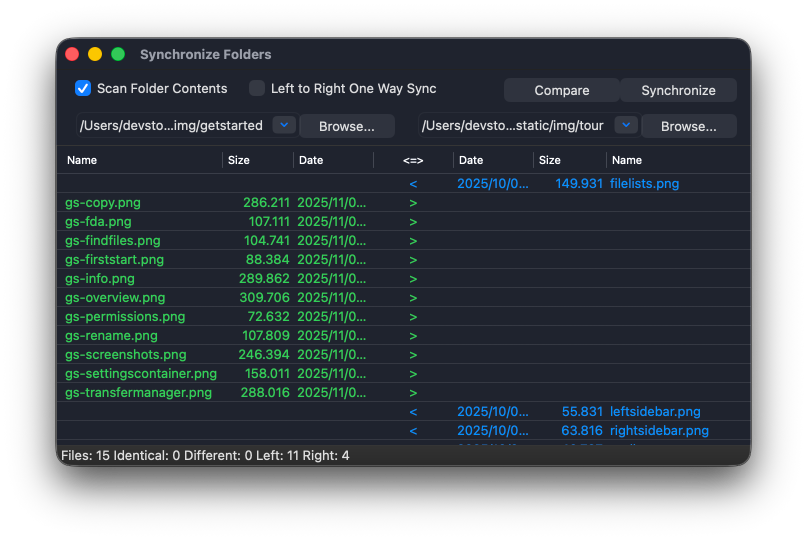
Options
-
Scan folder contents
When enabled, the comparison is recursive (sub-folders included).
When off, only the top level of each folder is compared. -
Left to Right one-way sync
When on, results will only schedule operations that make Right match Left (no Right → Left copies).
When off, the comparison may schedule copies in either direction to reconcile differences.
Compare
- Open Synchronize folders from the toolbar/menu.
- Confirm Source (Left) and Target (Right) (auto-populated from the panes).
- Set Scan folder contents and Left to Right one-way sync as needed.
- Click Compare.
DCommander scans the two locations and fills the Results list.
Understanding the results
Each row shows the relative path and an Action symbol with color:
>— Left → Right copy (green)<— Right → Left copy (blue)X— Delete on the corresponding side (red)=— No change; items are equal (black)
You cannot edit individual actions in this view. The preview reflects your two options only: Scan folder contents and Left to Right one-way sync.
Synchronize
- Review the results list.
- Click Synchronize to perform the operations shown.
Progress is displayed while the sync runs. When it finishes, the folders should match according to the chosen mode.
Practical examples
-
Mirror a working folder to a backup drive
- Left pane: working folder; Right pane: backup destination
- Scan folder contents: On
- Left to Right one-way sync: On
- Compare → Synchronize
-
Reconcile two project trees both ways
- Left pane: laptop project; Right pane: desktop project
- Scan folder contents: On
- Left to Right one-way sync: Off (allow both directions)
- Compare → Synchronize
-
Shallow cleanup at the top level only
- Scan folder contents: Off
- Left to Right one-way sync: On or Off as needed
- Compare → Synchronize
Tips & caveats
- Start with a smaller scope first (e.g., a subfolder) before reconciling very large trees.
- One-way sync is the safest choice when the Right side is a backup or deploy target.
- If you expect deletes, double-check the preview:
X(red) marks deletions. - On network shares or external drives, ensure the target is mounted and writable.
Troubleshooting
-
Everything shows as
=but I know files changed- Confirm you compared the intended folders (paths in the dialog). If needed, re-browse to the correct locations and Compare again.
-
I only want Left → Right, but I see
<actions- Turn Left to Right one-way sync on and Compare again.
-
The list is too short / missing subfolders
- Enable Scan folder contents for a recursive compare and Compare again.
-
Permission errors
- Add the folders in Preferences → Permissions or enable Full Disk Access, then re-run Compare.
Related
- First-run Setup — Granting access to Home, and protected folders
- File Operations — Copy/Move basics and Quick Look