When you need to mirror folder mac data to an external drive, you are looking…
How to Organize Downloads Folder Mac: A 5-Minute Daily Workflow
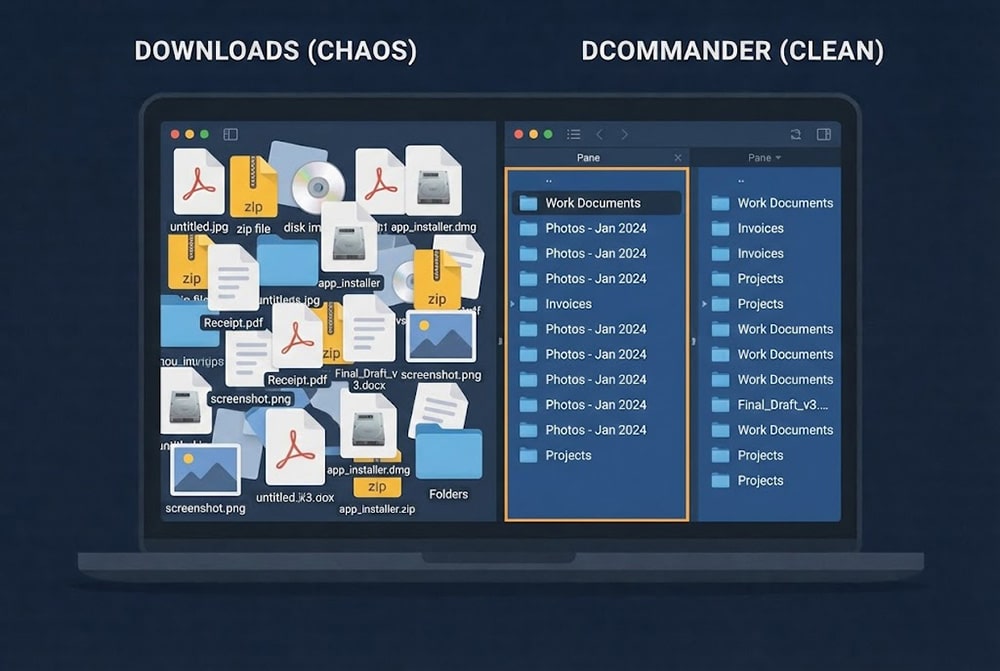
For most users, the attempt to organize downloads folder mac storage is a constant battle against entropy. It starts with a few PDFs and screenshots, but within weeks, it becomes a digital graveyard of “Untitled.jpg,” installer DMGs, and random ZIP files. This clutter not only makes it impossible to find what you need but also eats up valuable disk space. We’ll look at two ways to tidy up this chaos—one utilizing the command line and another using a rapid visual workflow—so you can regain control of your files in just 5 minutes a day.
Table of Contents
The “Dump and Forget” Problem
macOS directs almost every incoming file to the Downloads folder by default. Browsers, email clients, and messaging apps all dump data into this single location. Without a system to organize downloads folder mac contents regularly, the folder grows into a massive, unsortable list. The goal of a daily workflow isn’t to delete everything, but to quickly triage items: delete the trash, archive the keepers, and move active projects to their workspace.
How to cleanup using Terminal?
You can sort and move files based on their extensions using the Terminal. This allows you to bulk-move images to Pictures or documents to Documents without dragging and dropping. Launch Terminal from the Applications folder, then type:
cd ~/Downloads
mv *.png ~/Pictures/
mv *.pdf ~/Documents/
mv *.dmg ~/.Trash/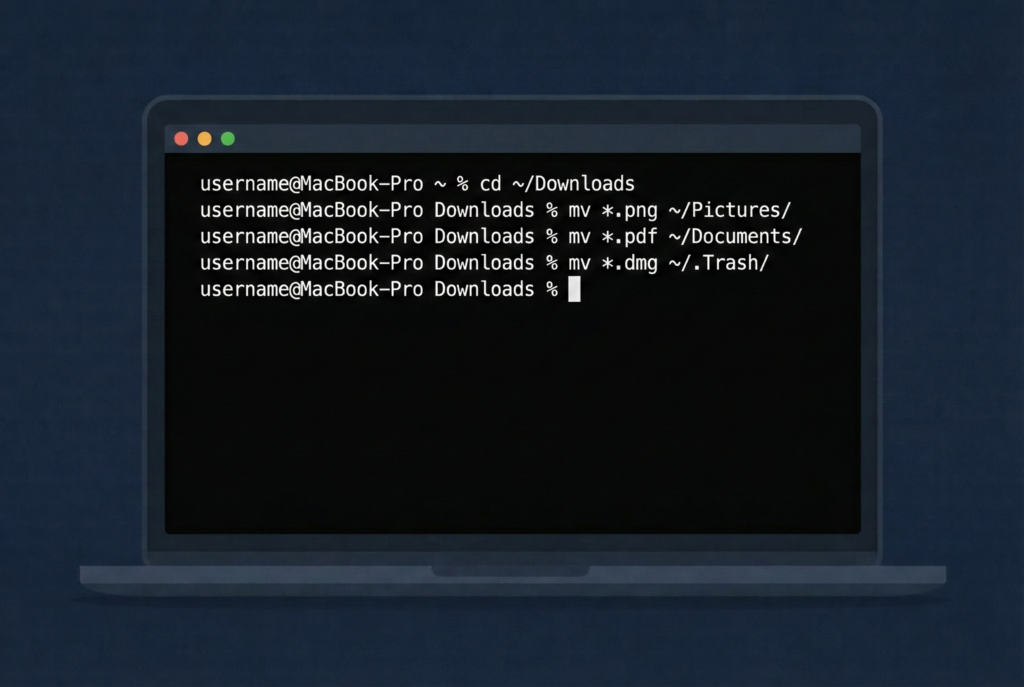
Breakdown of the command:
- cd ~/Downloads: Changes the directory to your Downloads folder.
- mv *.png ~/Pictures/: Moves all PNG images to your Pictures folder.
- mv *.dmg ~/.Trash/: Moves all disk image installers (which you usually don’t need after installing) to the Trash.
Limitations:
While scriptable, the Terminal method is “blind.” You cannot see the contents of the file before moving it. You might accidentally trash a DMG you needed to keep or move a work screenshot into a personal photo folder. It lacks the nuance required to properly organize downloads folder mac items by context.
How to organize using DCommander?
A much easier way to organize downloads folder mac content is to use DCommander. Its dual-pane interface allows you to see your Downloads folder on one side and your destination on the other, making triage incredibly fast. Because it’s a graphical application, you can Quick Look files instantly to decide their fate.
First, download and run DCommander.
- Setup the Layout: Set the Left Pane to ~/Downloads and the Right Pane to your Home folder (or your “Archive” drive).
- Sort by Kind: Click the “Kind” (or Extension) column header in the Downloads pane. This groups all your JPGs, PDFs, and ZIPs together.
- Quick Selection: Hold Shift and click to select a whole block of files (e.g., all 50 PDFs).
- Triage:
- Delete: Press F8 to trash installers and junk immediately.
- Archive: Press F6 to Move important files to the destination pane.
- Preview: Not sure what a file is? Press Space for a Quick Look before moving.
Why DCommander wins the daily cleanup:
- Dual-Pane Visibility: You don’t need to open two Finder windows and arrange them. The destination is always ready.
- Smart Selection: Use the Select all with same extension command to instantly grab every screenshot in the folder.
- Batch Rename: If you downloaded 10 receipts named “invoice.pdf”, use the Multi Rename tool to date them automatically as you move them.
Tips for a 5-Minute Workflow
To successfully organize downloads folder mac directories daily, stick to these habits:
- Sort by “Date Added”: In DCommander, click the Date column. Process the files from “Today” first, then work backward.
- Trash DMGs immediately: After you install an app, the .dmg file is useless junk. Sort by extension and F8 them all.
- Use Drag & Drop Storage: DCommander has a “shelf” on the left sidebar. Drag files you aren’t sure about onto the shelf, navigate to a new project folder, and drag them off.
- Create a “To File” folder: If you are in a rush, move everything you want to keep into a single “To File” folder to clear the Downloads view, and sort that folder at the end of the week.
Conclusion
You don’t need to live with digital clutter. While Terminal commands can sweep files into buckets blindly, using DCommander provides the speed and visibility needed to actually organize downloads folder mac contents intelligently. By spending just five minutes a day utilizing the dual-pane move and delete shortcuts, you keep your Mac running smooth and your files easy to find.
Related Posts