
How to Move Large Files on Mac Without Finder Hangs
If you work with 4K video, RAW photography, or massive datasets, you know the dread of the Finder progress bar stuck on “Preparing to copy…” indefinitely. When you try to move large files on mac systems they often pause to calculate file counts and sizes before transferring a single byte. For video editors on a deadline, this delay is unacceptable. We’ll look at two ways to bypass this “preparation” phase so you can start transferring terabytes of data immediately.
Table of Contents
Why Finder Gets Stuck on “Preparing…”
When you drag a folder in Finder, it attempts to index every single file inside that folder to estimate the time remaining. If you are moving a camera card with thousands of clips or a project folder with complex dependencies, Finder creates a bottleneck. It wastes time counting files instead of moving them. To move large files on mac, users need a method that starts the transfer now and calculates later.
How to move large files using Terminal?
The Terminal is efficient because it doesn’t need to update a GUI progress bar or pre-calculate the total size to start the job. It just grabs the first file and goes.
Launch Terminal from the Applications folder. To move a folder named Footage_Dump from your Desktop to an external SSD named EditingDrive, type:
mv -v ~/Desktop/Footage_Dump /Volumes/EditingDrive/Breakdown of the command:
- mv: The command to move files.
- -v: Verbose mode. This forces Terminal to list every file as it moves, acting as a crude progress indicator so you know it hasn’t crashed.
- ~/Desktop/Footage_Dump: Your source.
- /Volumes/EditingDrive/: Your destination.
Limitations:
While mv starts instantly, it is unforgiving. If the cable gets bumped or the drive disconnects, the process dies, and you are left with half your files on the source and half on the destination. Resuming a failed move via command line is a complex nightmare.
How to move large files using DCommander?
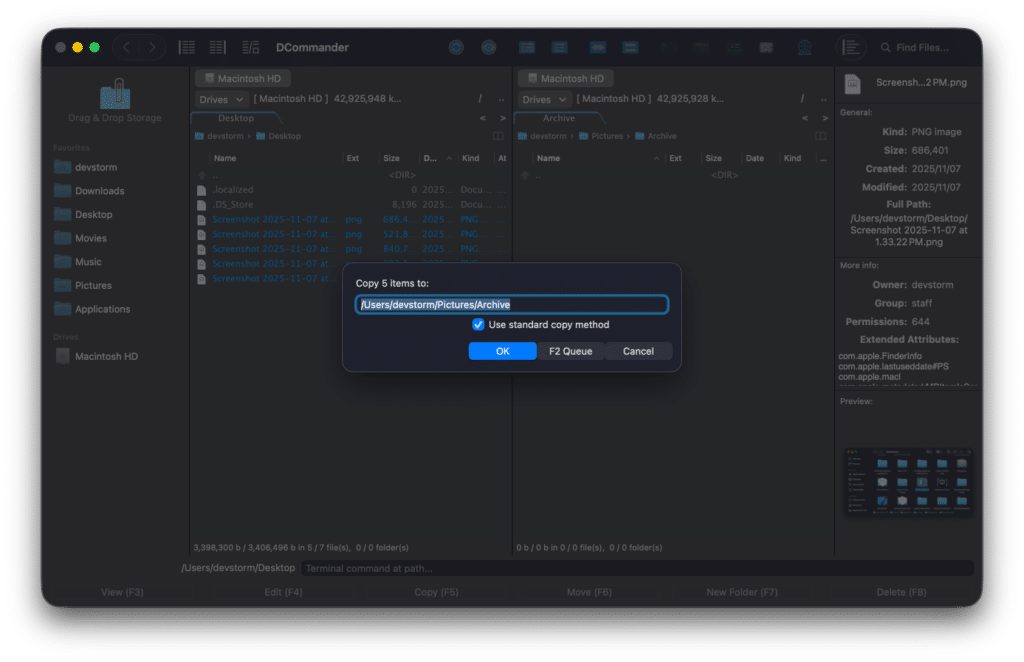
A much easier and safer way to move large files on mac is to use DCommander. It is built specifically for heavy workloads. DCommander uses a Transfer Queue that begins processing the first item immediately while it calculates the rest in the background. It skips the “Preparing” hang entirely.
First, download and run DCommander.
- Select Your Media: Navigate to your source (e.g., SD Card) in the left pane and select your video folders.
- Set Destination: Navigate to your RAID or SSD in the right pane.
- Initiate Move: Press F6 (Move).
- Queue It: The Transfer Manager (⌘J) opens instantly. You will see the transfer speed and current file immediately.
Why DCommander handles 4K video better:
- Sequential Processing: Finder sometimes tries to copy multiple small files in parallel, causing “disk thrashing” on mechanical drives. DCommander’s queue moves files sequentially, maximizing drive throughput.
- Detailed Speedometer: See exactly how fast your drive is writing (e.g., “450 MB/s”). If the speed drops, you know immediately if your card reader or cable is thermal throttling.
- Verification: DCommander ensures the file is written before removing the source, preventing data loss during a cut/paste operation.
Tips for High-Speed Transfers
To successfully move large files on mac, workflows require hardware awareness:
- Avoid Wi-Fi: Always use a cable (Thunderbolt or USB-C 3.2) for video files.
- Check Formatting: Moving files between APFS drives is nearly instant (via cloning). Moving to ExFAT (common for cameras) is slower. DCommander handles both robustly.
- One Operation at a Time: Don’t start three separate copy jobs. This splits your bandwidth. Add them all to the DCommander Transfer Queue so they run one after another for maximum speed.
Conclusion
The “Preparing to copy” dialog is a relic of casual computing. When you need to move large files mac reliably, you cannot afford to wait for Finder to count to infinity. While Terminal provides a raw, instant start, it lacks safety nets. DCommander offers the best of both worlds: the instant start of the command line with the pause/resume safety and visual feedback of a pro tool. For video editors and data hoarders, it is the essential upgrade.