DSync 2.9
Compare folders, see every difference.
DSync compares two local folders and lets you choose exactly what to copy, skip, or remove before making changes.
Getting Started
DSync works in three steps: choose the folders, choose how they should be compared, then review and synchronize the results.
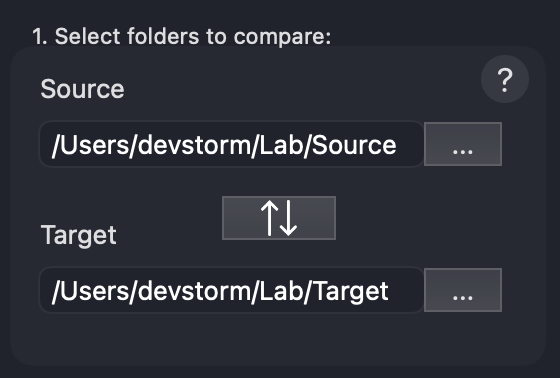
1. Select the folders
Choose a Source folder and a Target folder with the … buttons. The Source is normally your working copy; the Target is normally your backup or second copy. Use the swap control between the folder fields when you need to reverse them.
2. Choose comparison options
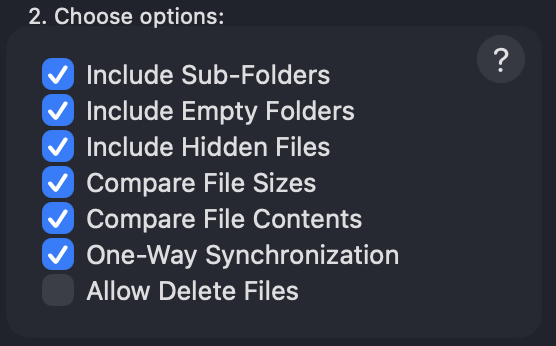
- Include Sub-Folders scans folders below the selected roots.
- Include Empty Folders includes empty folders in the results and synchronization.
- Include Hidden Files includes hidden items such as files beginning with a period.
- Compare File Sizes treats same-named files with different sizes as different.
- Compare File Contents compares the contents of matching regular files and symbolic links. This is more thorough and can take longer for large files.
- One-Way Synchronization sets changes to flow from Source to Target. Review the result rows before synchronizing.
- Allow Delete Files enables delete actions for items you mark for deletion. Deleted items are moved to the macOS Trash, not permanently erased.
3. Compare
Click Compare. DSync scans both folders, compares the results, and enables Synchronize only after a successful comparison. Use Stop to cancel an in-progress operation.
Compare Results
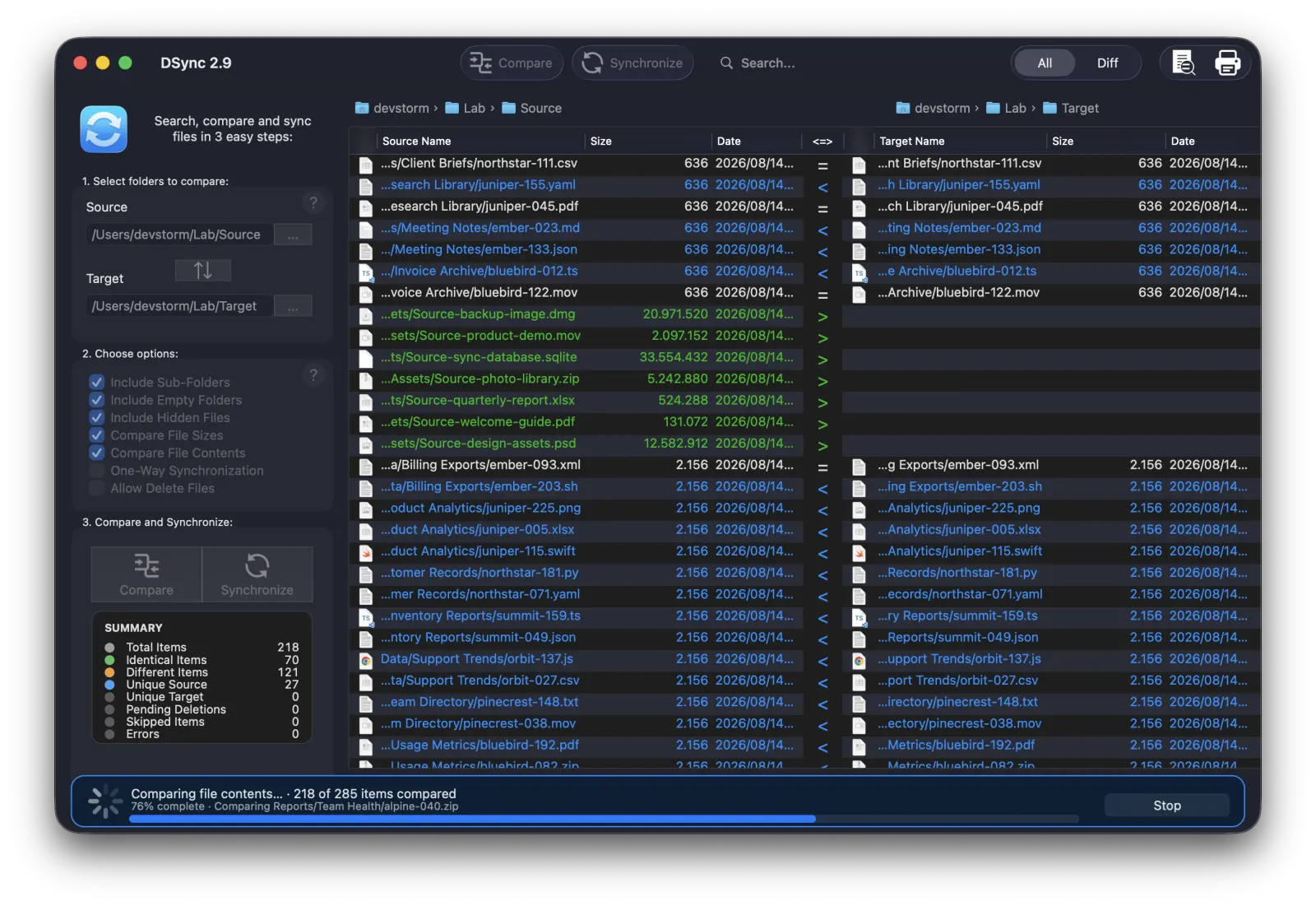
The result table shows the Source and Target names, sizes, dates, and a direction column between them. Each row represents an item DSync compared and the action currently selected for it.
During a large comparison, results appear as they are found. The status area reports the current phase—scanning folders, comparing metadata, comparing contents, or finalizing—and shows progress plus the current item when available. The summary updates live so you can see matching items, differences, skipped items, pending deletions, and scan errors.
How comparison options affect results
DSync always compares relative paths and item types. A file, folder, and symbolic link at the same relative path are considered different item types. Turn on Compare File Sizes to catch same-named files with changed sizes, and Compare File Contents when matching sizes are not sufficient. Symbolic links are compared by their destinations when content comparison is enabled.
Synchronize Safely
Always review the result table before synchronizing. You can change individual actions, skip rows you do not want to process, and use search or filters to focus on a subset.
Preview before changes
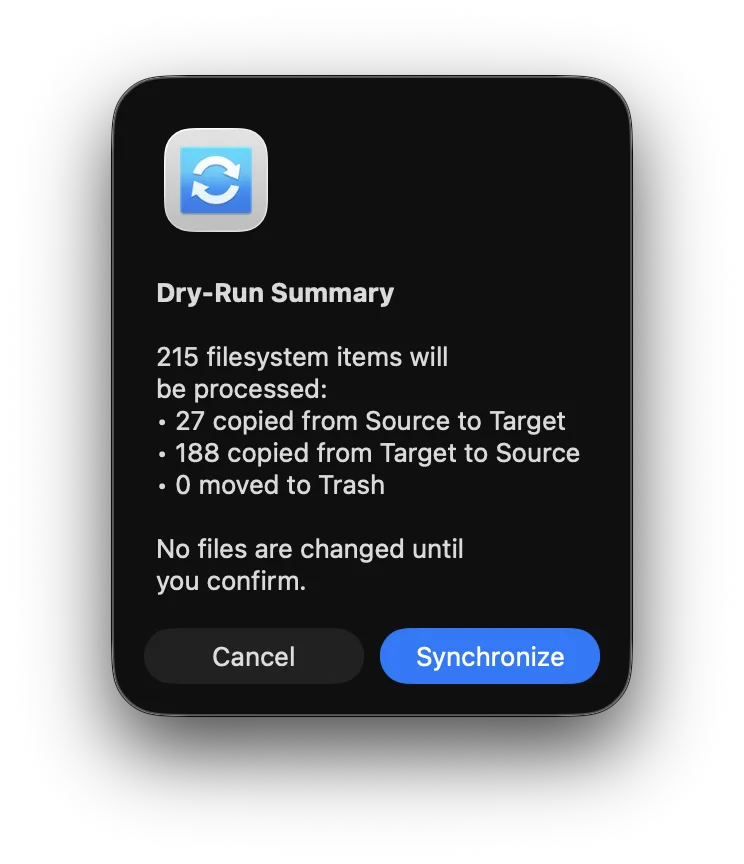
When you click Synchronize, DSync first presents a Dry-Run Summary. It lists how many items will be copied from Source to Target, copied from Target to Source, and moved to Trash. Nothing changes until you confirm the dialog.
Copies and deletions
DSync stages and verifies replacements before committing them, helping protect the destination if a copy fails. It also handles empty folders and immutable files more reliably. If an action is a deletion, the item is moved to the macOS Trash. You can restore it from Trash if needed.
After synchronization, check the result summary. If an item could not be processed, DSync reports the error rather than silently treating the operation as successful.
Working with Results
Use the search field to find matching paths in the results. Use the result filter to narrow the visible rows, then work with the selected items.
Right-click a row, or use the File menu, to choose actions such as Toggle, Skip, or Delete. You can also open the Source or Target item, show it in Finder, copy its full path, or preview it with Quick Look. Select rows and choose Synchronize Selected for a reviewed subset; it uses the same Dry-Run Summary confirmation.
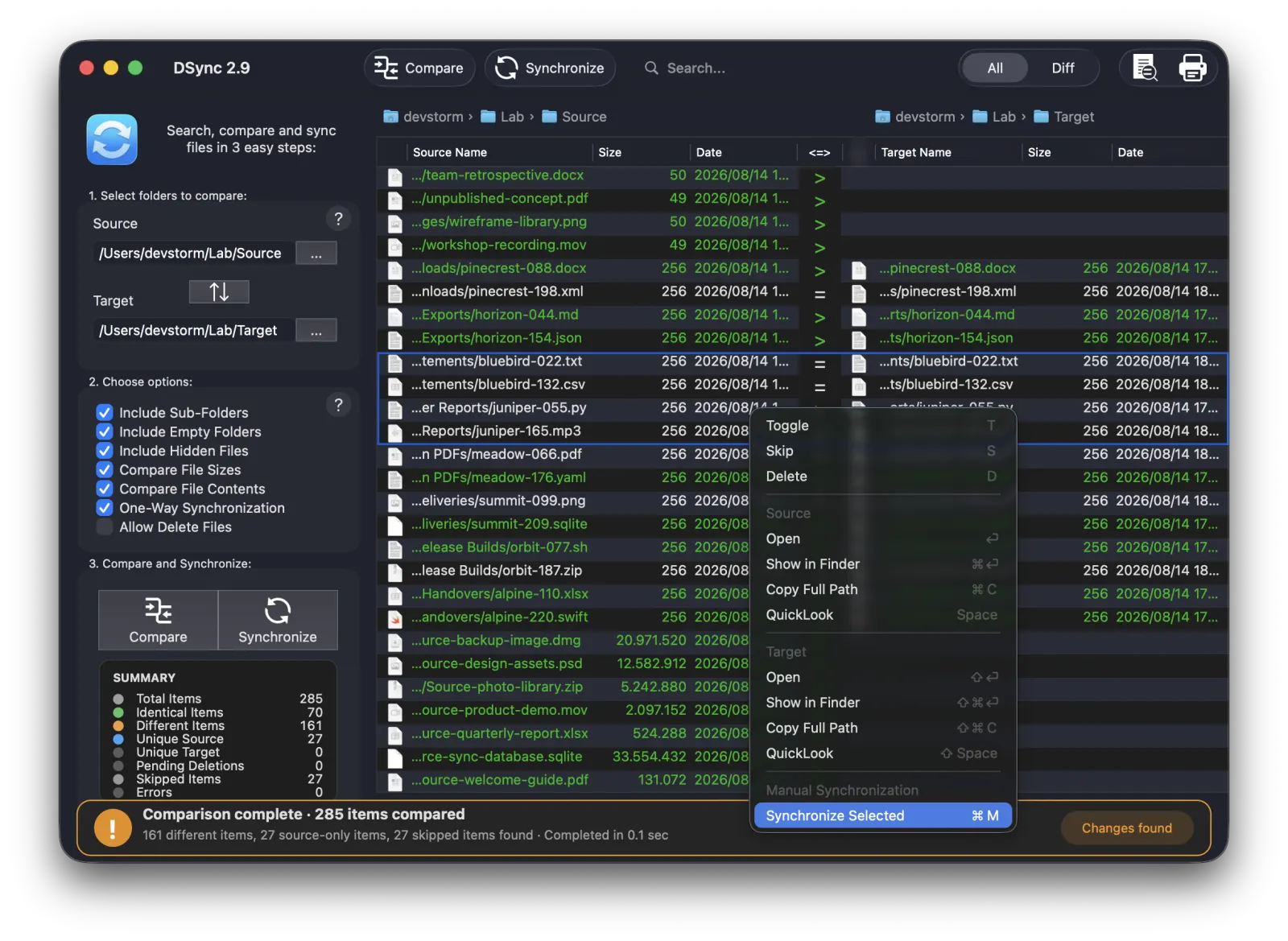
- T — Toggle the selected row’s copy direction or action.
- S — Skip selected rows.
- D — Mark selected rows for deletion (requires Allow Delete Files).
- Space — Quick Look the selected item.
What’s New in 2.9
- Added safer file synchronization with staged and verified file replacement.
- Added synchronization preview and confirmation before files are changed.
- Added clear error rows when a folder or item cannot be scanned.
- Added live comparison results, summary updates and clearer progress for large folders.
- Added separate progress details for scanning folders, comparing metadata, comparing contents and finalizing results.
- Added current-item details while comparing very large folders.
- Improved comparison accuracy for files, folders and symbolic links.
- Improved symbolic-link comparison to detect changed link destinations.
- Improved folder traversal to avoid rare recursive symbolic-link loops.
- Improved synchronization of immutable files and empty folders.
- Improved memory handling for repeated and very large comparisons.
- Improved cleanup when a comparison is cancelled while results are being displayed.
- Improved comparison summaries to show pending deletions, skipped items and scan errors.
- Improved progress totals to reflect all paths being compared.
- Changed file deletion to move items to Trash instead of permanently deleting them.
- Fixed synchronization being allowed between identical, nested or symlink-alias folders.
- Fixed directory symbolic links redirecting synchronization outside the selected folders.
- Fixed stale comparison results being used after changing folders.
- Fixed certain unreadable files or scan problems being treated as matching files.
- Fixed unreadable file contents sometimes being treated as an empty file during comparison.
- Fixed stale filtered and search results being used after changing folders.
- Fixed file, folder and symbolic-link type mismatches sometimes being reported as identical.
- Fixed deleted items remaining visible as identical after full or manual selected synchronization.
- Fixed deletion previews counting matched items as only one deletion.
- Fixed search, filtering and double-click actions sometimes affecting the wrong item.
- Fixed scan errors being duplicated or incorrectly combined in the results list.
- Fixed synchronization being enabled after a comparison is cancelled, stopped or completed with errors.
- Fixed stale file references and result memory leaks during repeated comparisons.
- Fixed minor reported issues.
FAQ
Can I synchronize a folder with a folder inside it?
No. Source and Target must be separate, non-overlapping folders. This also applies when one path is a symbolic-link alias for the other.
Does DSync permanently delete files?
No. In DSync 2.9, items selected for deletion are moved to the macOS Trash. You must enable Allow Delete Files, review the Dry-Run Summary, and confirm before any deletion action runs.
Why is Synchronize unavailable?
Choose both folders and complete a successful comparison first. DSync keeps synchronization unavailable if the comparison is cancelled, stopped, or finishes with scan errors.
When should I compare contents?
Use it when file names and sizes alone are not enough to identify changes. It is more accurate, but takes longer because DSync reads matching file contents.
Where can I get help?
Visit DevStorm Apps to contact us.